Access Assets
Users can access assets stored in Data Rooms through two primary methods:
- via a Direct Link (Unauthenticated)
- via the DataRume Application (Authenticated).
In both cases, holding a valid Data Token balance is required to view the secured files.
1. Direct Link Access (Unauthenticated)
This method is for users who receive a direct URL to a Data Room (e.g., shared via TokenURI of dataNFTAddress) and are NOT currently logged into the DataRume platform.
Step 1: Connect Wallet
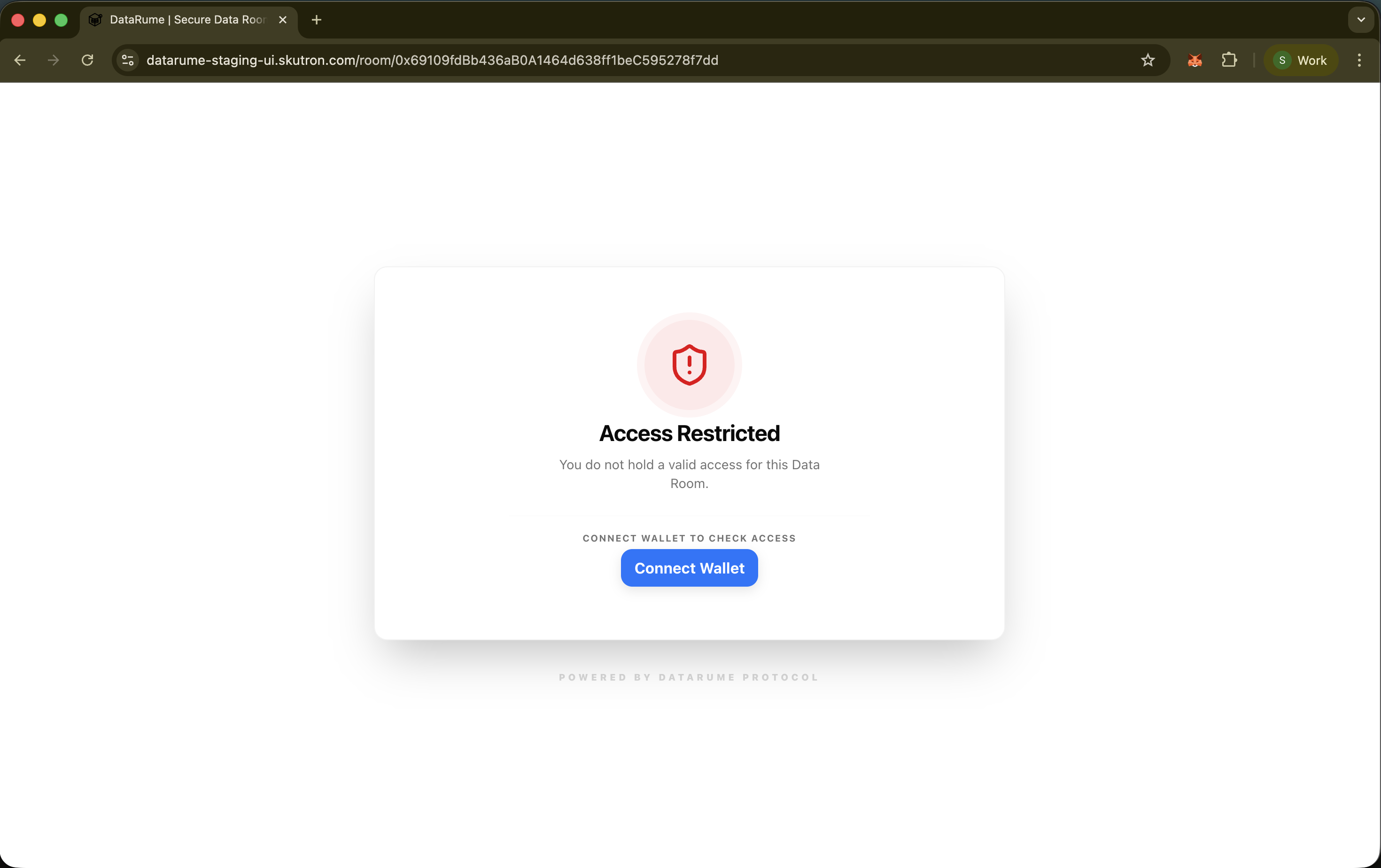
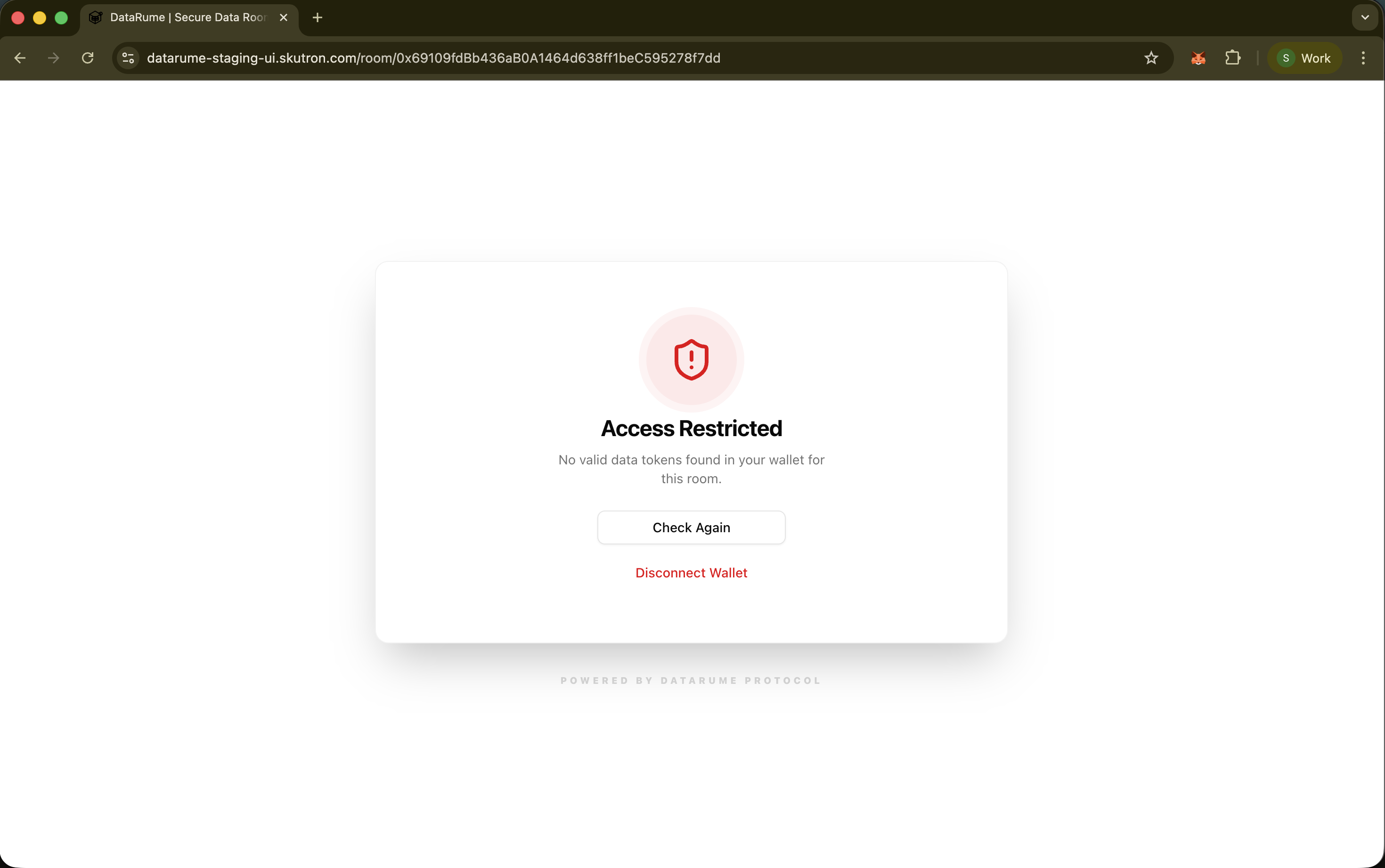
Upon opening the link, the system restricts access by default. You will see an Access Restricted screen prompting you to connect your wallet.
- Click Connect Wallet to verify your on-chain identity.
Step 2: On-Chain Verification
Once the wallet is connected, the platform automatically checks your wallet's Data Token balance for this specific room.
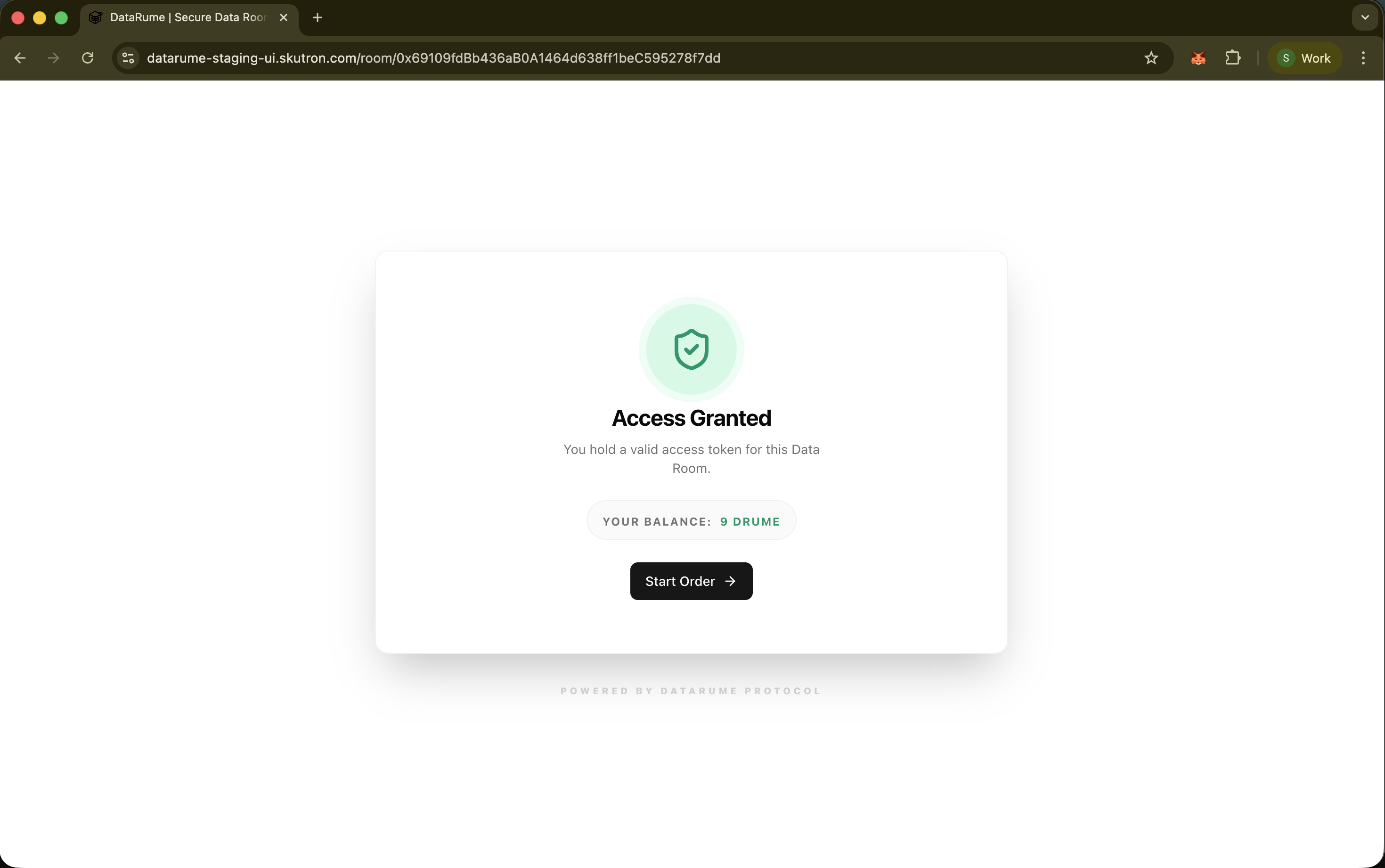
Scenario A: Access Granted If you hold valid Data Tokens, you will see the Access Granted screen displaying your current token balance.
- You can now proceed to Initiate Secure Access below.
Scenario B: Access Restricted If your wallet does NOT hold any valid Data Tokens for this room, you will see an Access Restricted message indicating no valid tokens were found.
2. Dashboard Access (Authenticated)
This method applies to users who are already logged into the DataRume platform.
- Navigate to the Dashboard where your available Data Rooms are listed.
- Click on the active Data Room you wish to access.
- The system immediately verifies your token balance and directs you to the Access Verification page (similar to the Access Granted screen above).
Initiating Secure Access
Regardless of how you arrived (Direct Link or Dashboard), once Access is Granted, the flow to view files is identical.
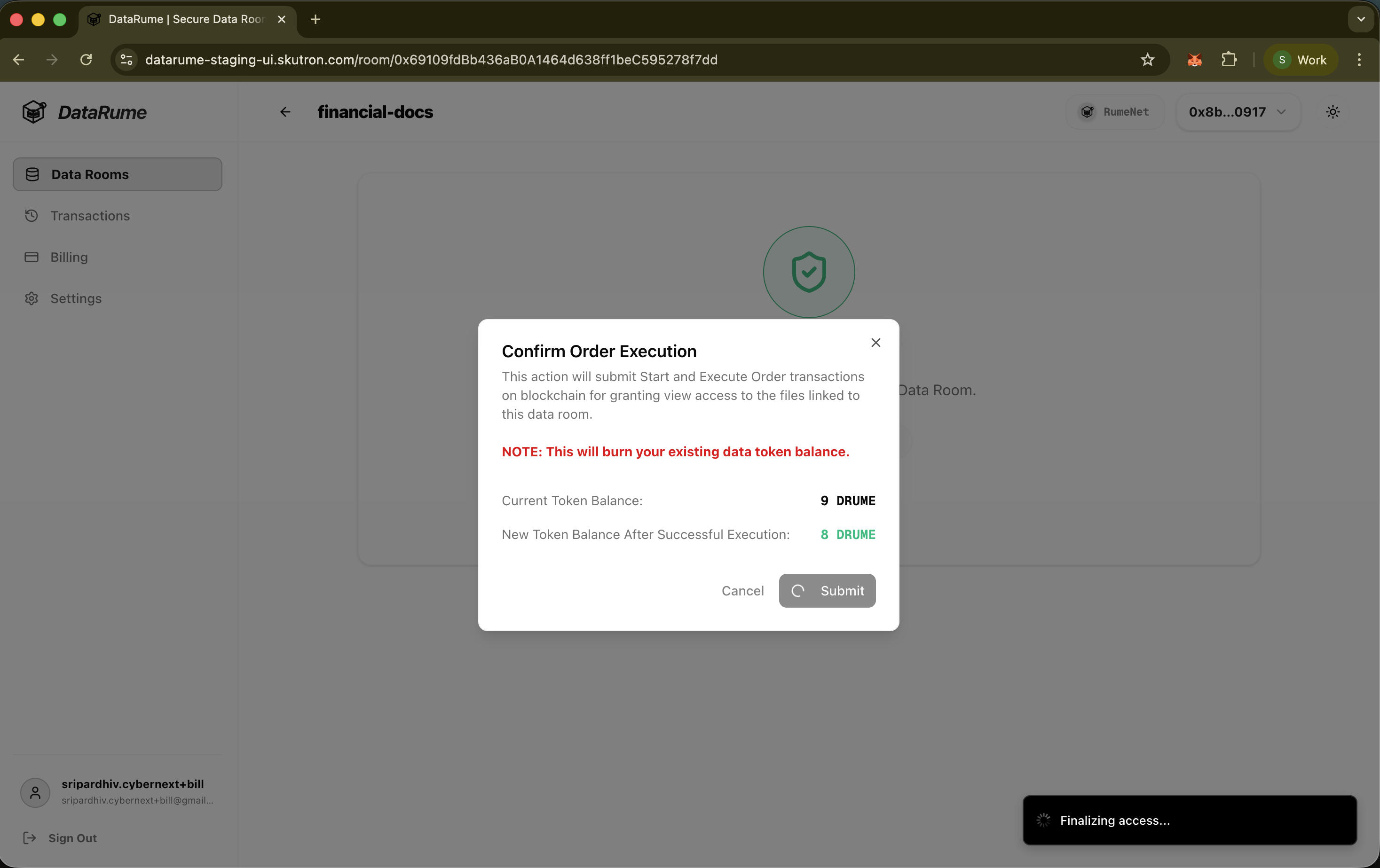
Phase 1: Start Order
To unlock the secured files, you must initiate a secure order process.
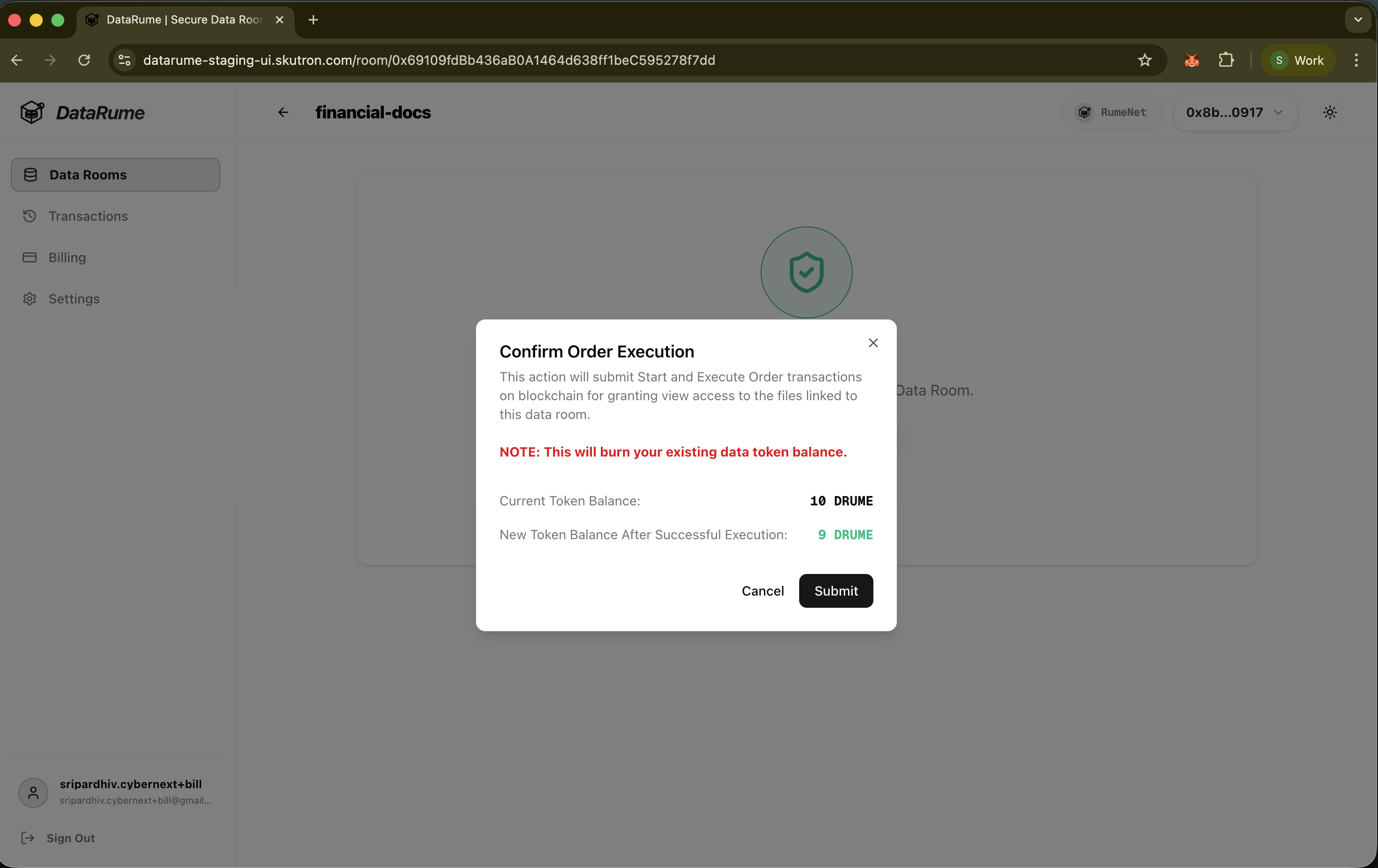
- Click Start Order.
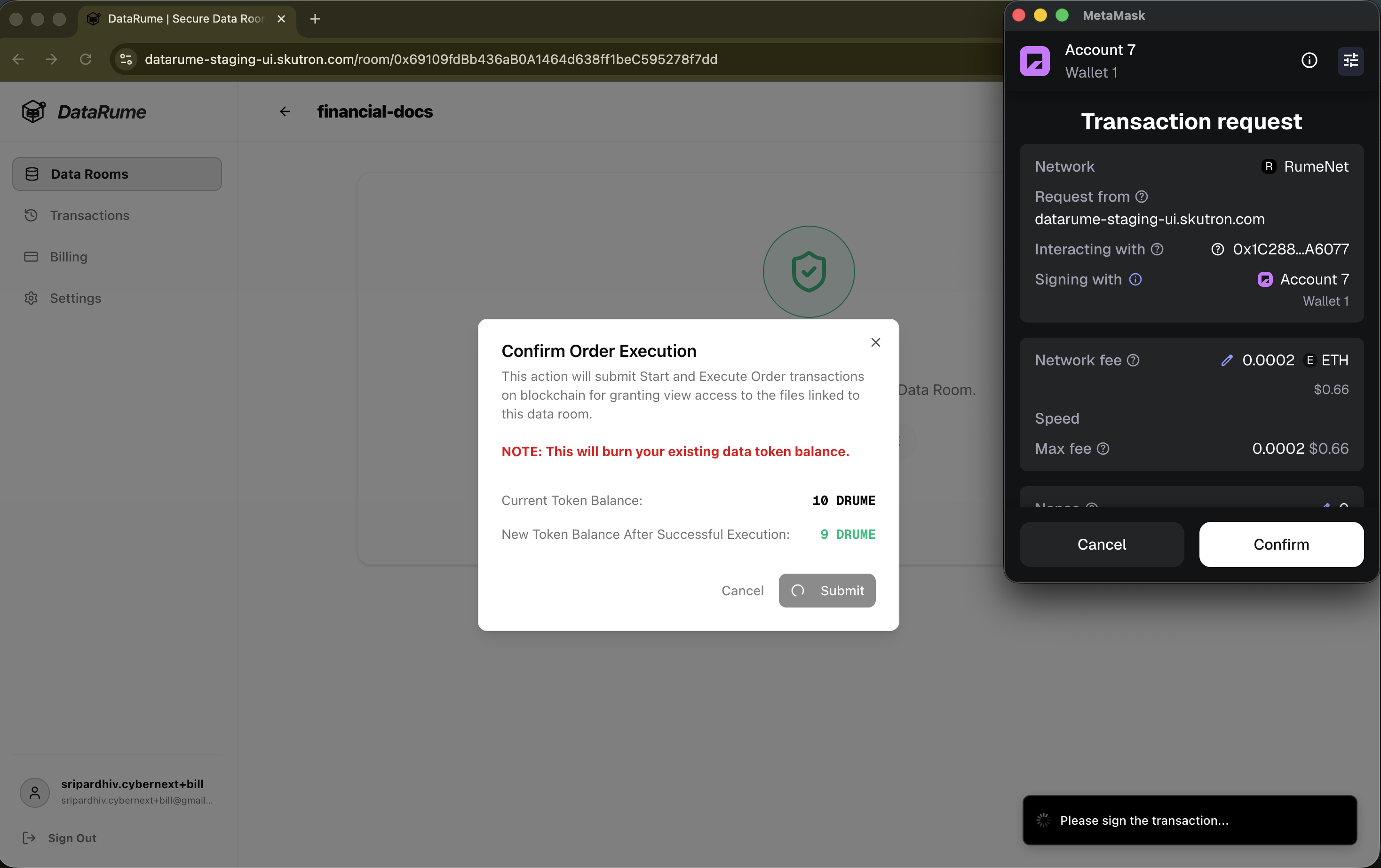
- Confirm the Transaction in your wallet.
- Cost: This action burns 1 Data Token from your balance to create a valid access session.
Phase 2: Execute Order (Secure Handshake)
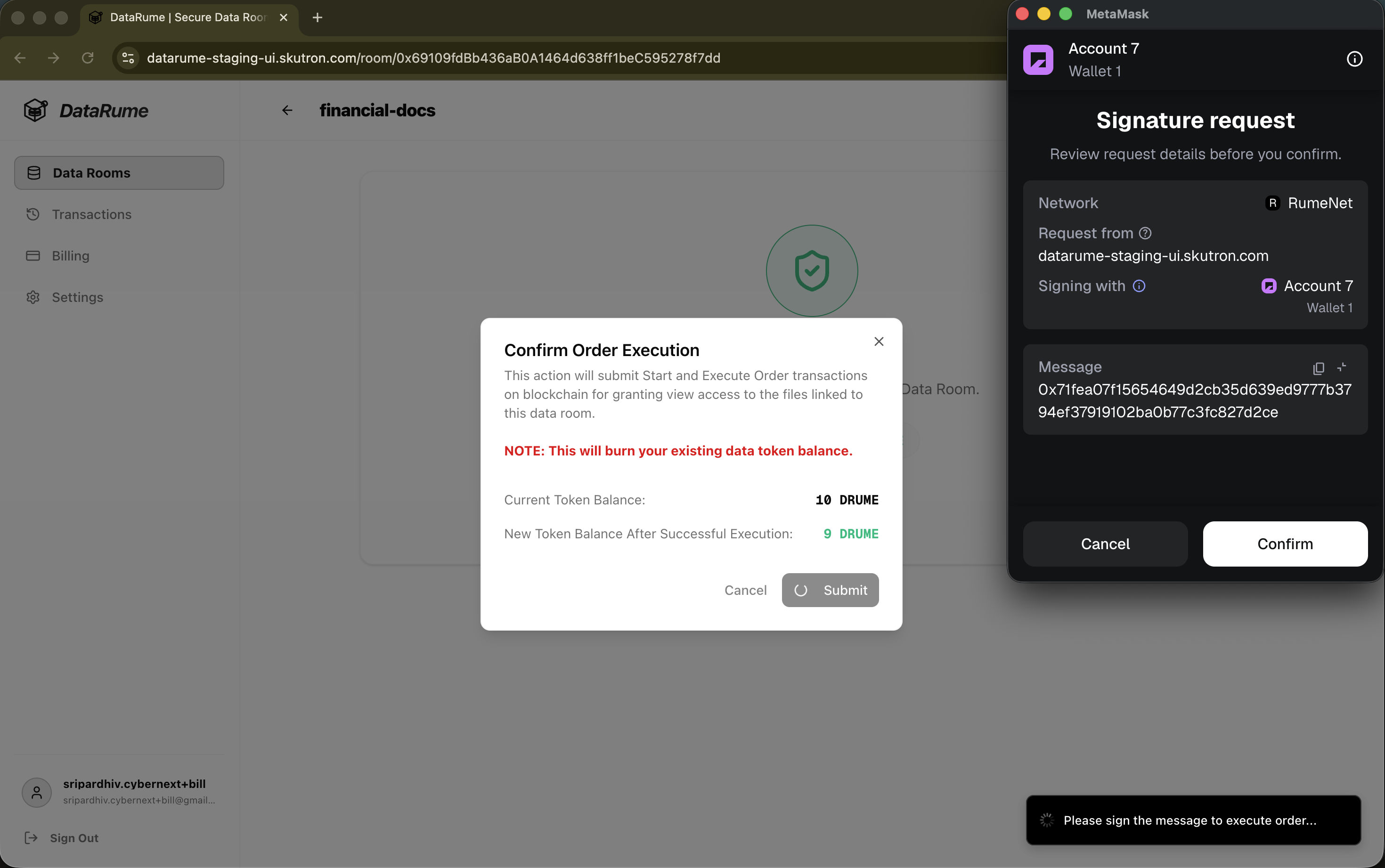
Once the startOrder transaction is confirmed on the blockchain, you must cryptographically prove your identity to decrypt the content.
- Sign Message: Your wallet will prompt you to sign a message containing the unique session ID serviceIndex.
- Validation: The system validates this consumer signature against the initial order.
Phase 3: Viewing Secured Files
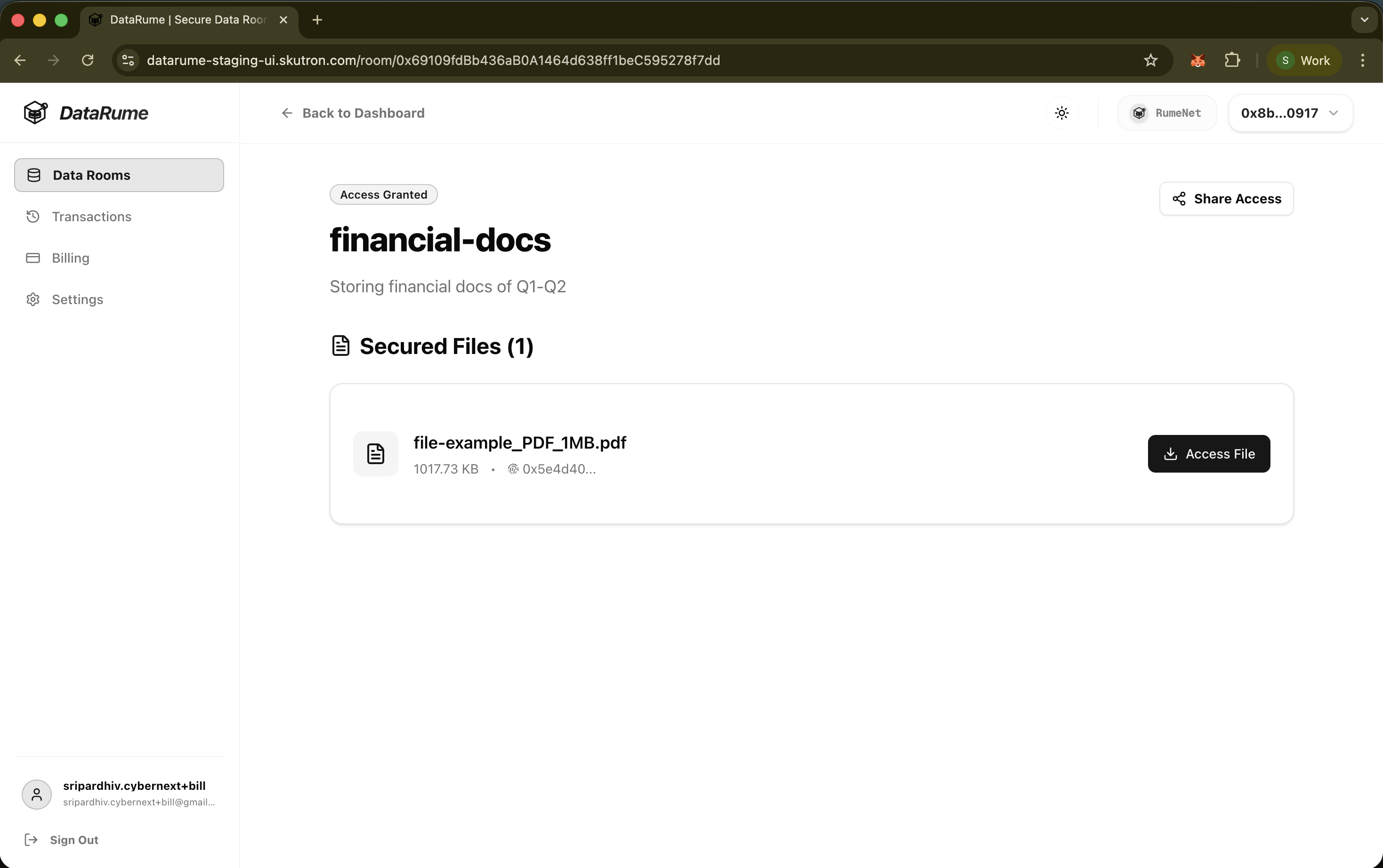
Upon successful validation, the files are unlocked.
- The UI displays the Secured Files list.
- You can view or download files via secure, pre-signed S3 URLs.
Important: These secure links expire after 15 minutes. To access the files again later, you must repeat the Start Order process.