v1.0.0 Stable
Upload Assets
DataRume ensures secure file storage by leveraging AWS S3 buckets. Whether you are deploying a new room or upgrading an existing one, all files are encrypted and stored off-chain while their access is governed on-chain by Data Tokens.
Storage Configuration
Files can be stored in one of two locations:
- DataRume Managed S3: The default secure storage provided by the platform.
- Self-Hosted S3: Your own private AWS S3 bucket.
- Note: To use this option, you must configure your AWS credentials in the Profile Settings page.
When are files uploaded?
There are three primary scenarios for uploading files and assets to a Data Room.
1. During Deployment (Wizard View)
When creating a new Data Room via the Deployment Wizard, you can queue files for upload in Step 1: Assets & Storage.
- Process: Files added here are queued locally.
- Storage Calculation: The total size of these files determines the initial storage capacity required for the room.
- Upload Timing: The actual upload to the S3 bucket occurs automatically when you click "Deploy Data Room" at the end of the wizard.
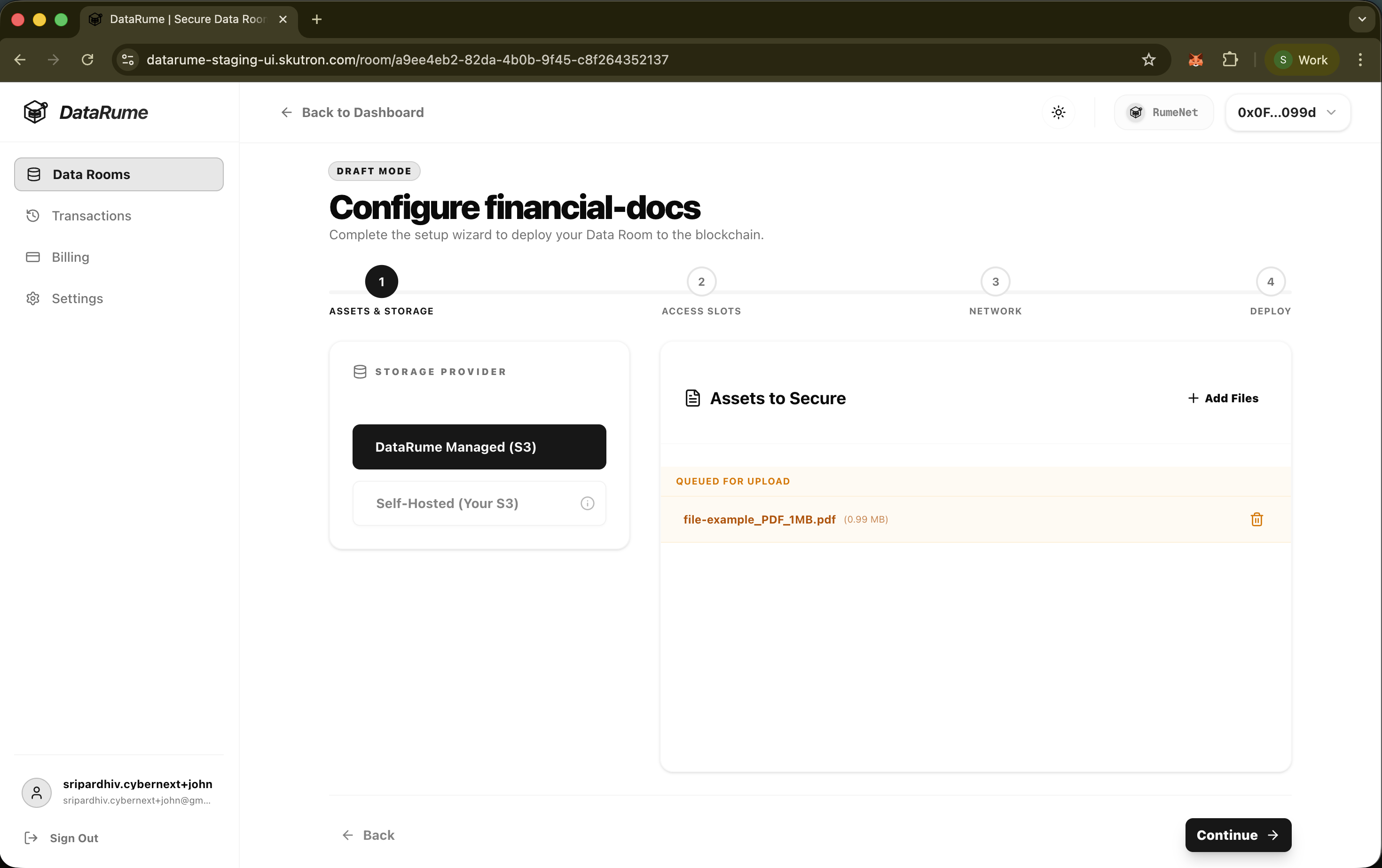
Queuing Files in Wizard
2. Post-Deployment (Active Room)
Once a Data Room is deployed and Active, the Data Room Owner can add more files directly from the room's details page.
- Constraint: The Owner can only add files up to the limit of their current Available Storage.
- Available Storage: Displayed in the Secure Assets section (e.g.,
Available: 99 MB). - Process:
- Navigate to the Secured Files section.
- Click Add Files.
- If the file size fits within the remaining quota, it is uploaded immediately.
- The available storage and files count will be updated in real-time.
- If the Available Storage reaches 0 MB, you must upgrade the room to add more files.
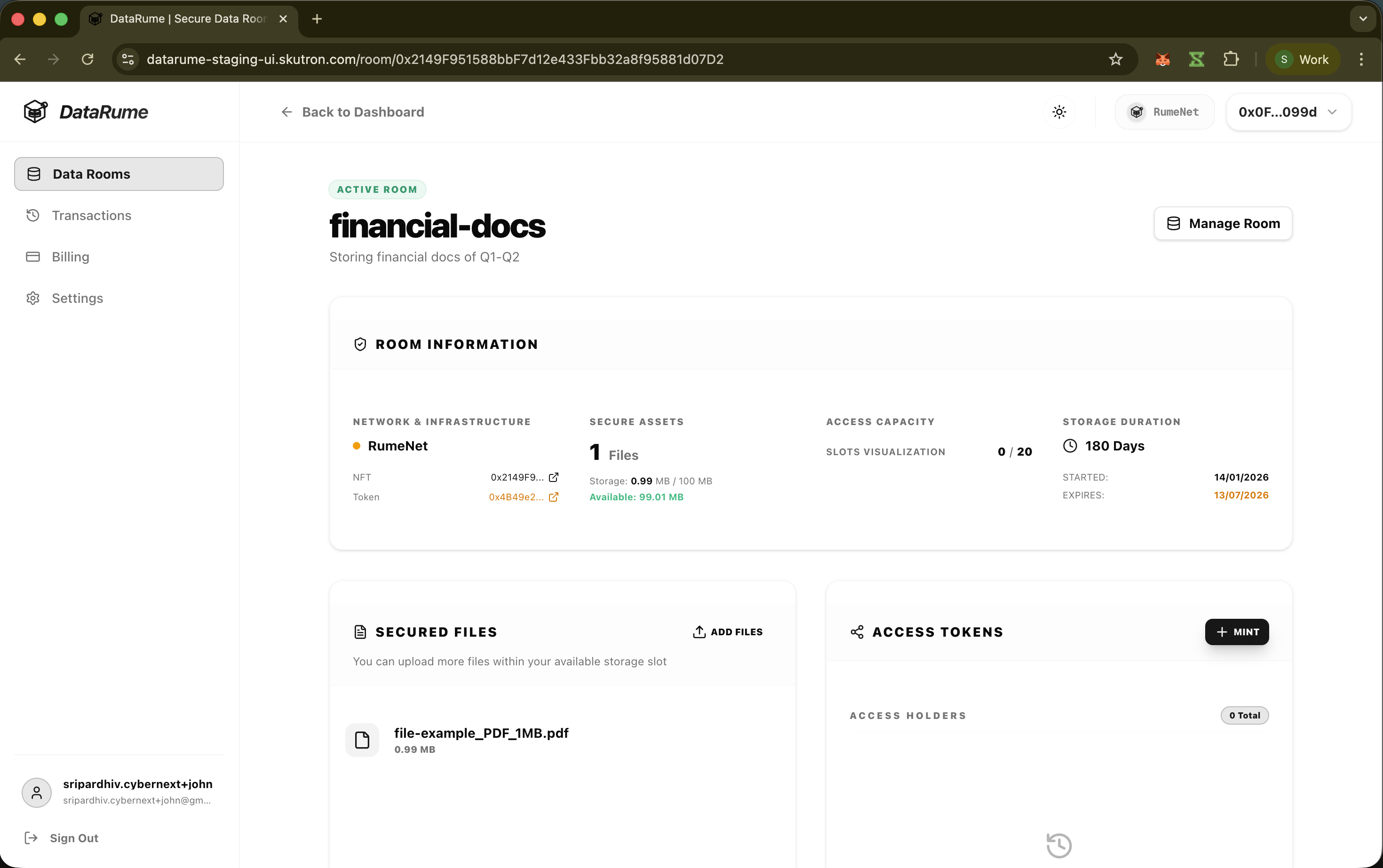
Add Files Button
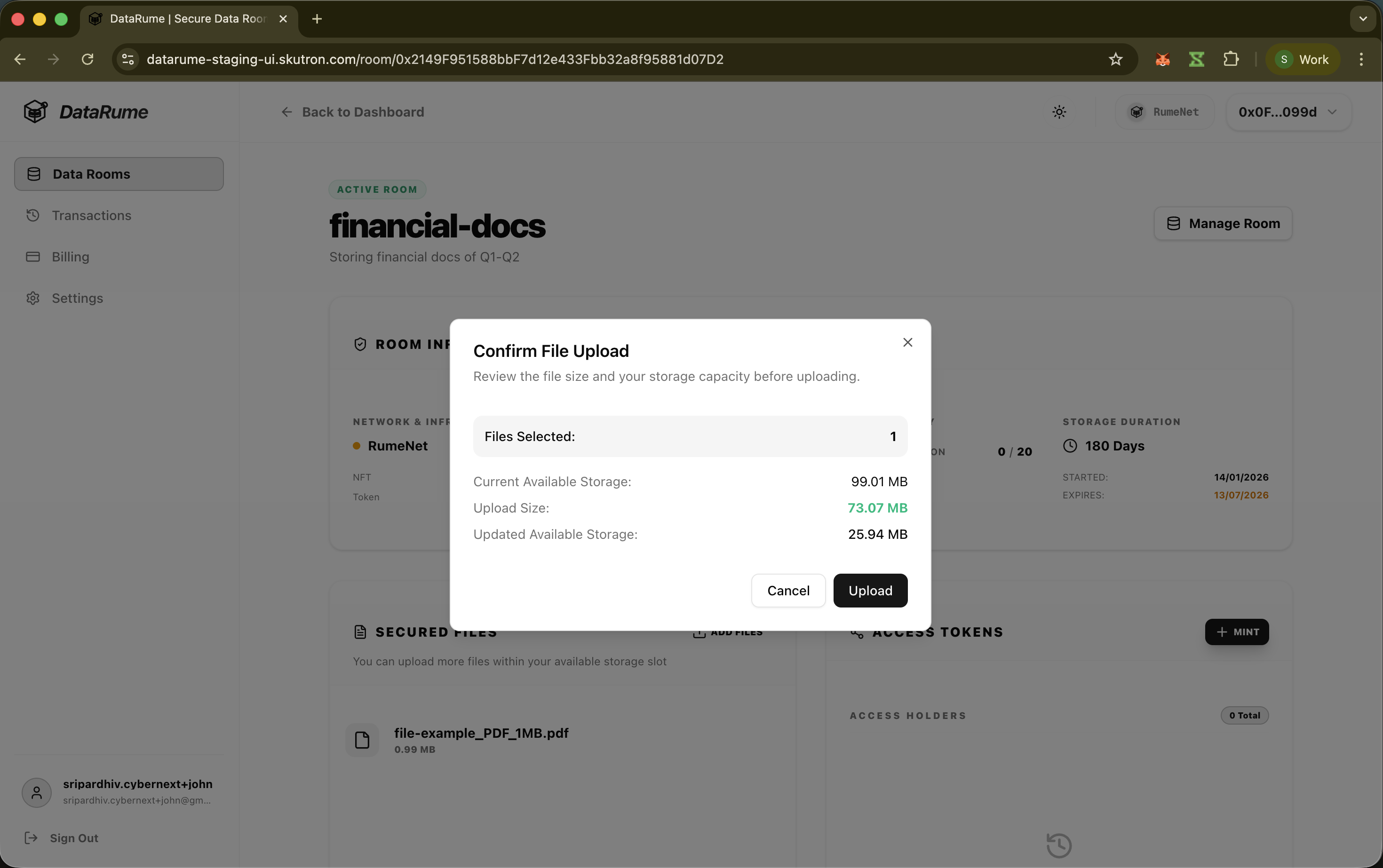
Add Files Modal
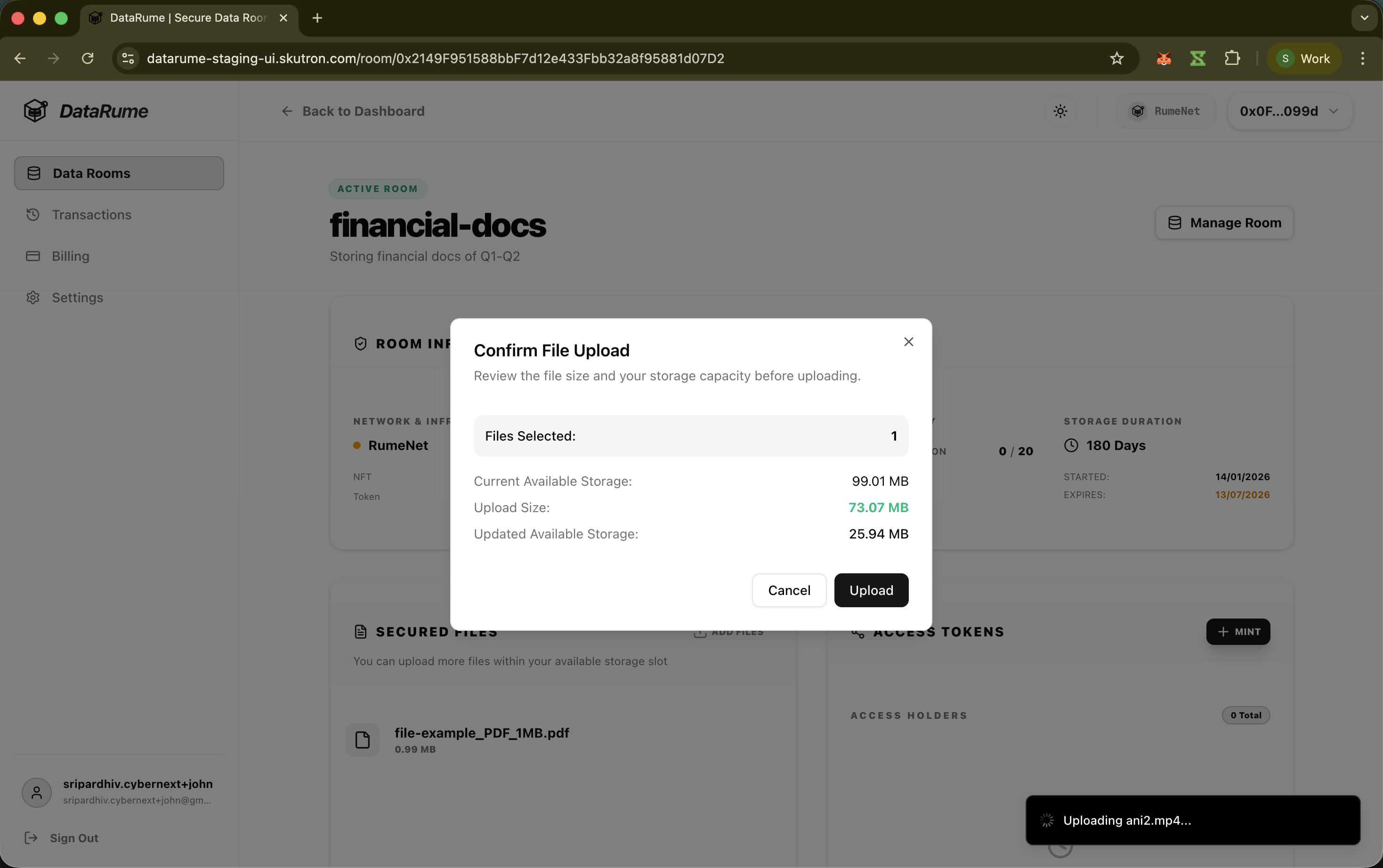
Uploading Asset
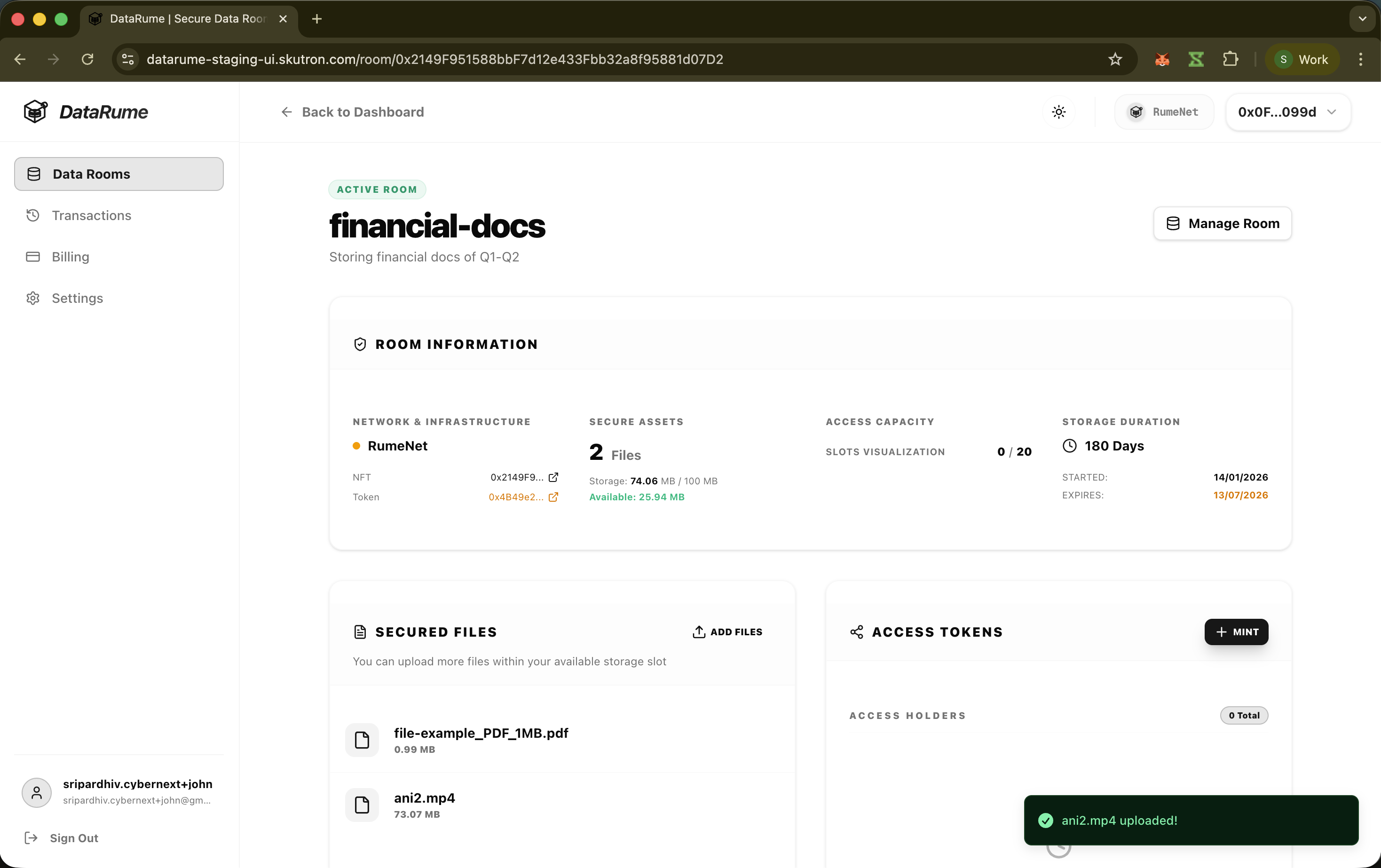
Asset Uploaded
3. During Upgrade
If your room has run out of storage space, or you wish to add a large batch of files, you can do so via the Data Room Upgradation flow.
- Process:
- Initiate the Upgrade flow.
- Add new files to the queue.
- The system calculates if the new files exceed the current storage limit.
- These queued files will be uploaded to the S3 bucket automatically when you click "Pay & Apply Changes".
- Automatic Storage Upgrade: If the collectively added files exceed the available slot, the system automatically selects a Storage Upgrade
- (e.g.,
100 -> 200).
- (e.g.,
- Cost: The incremental cost to upgrade the room (Platform Fee + Network Fee) will be updated to reflect the additional storage purchase.
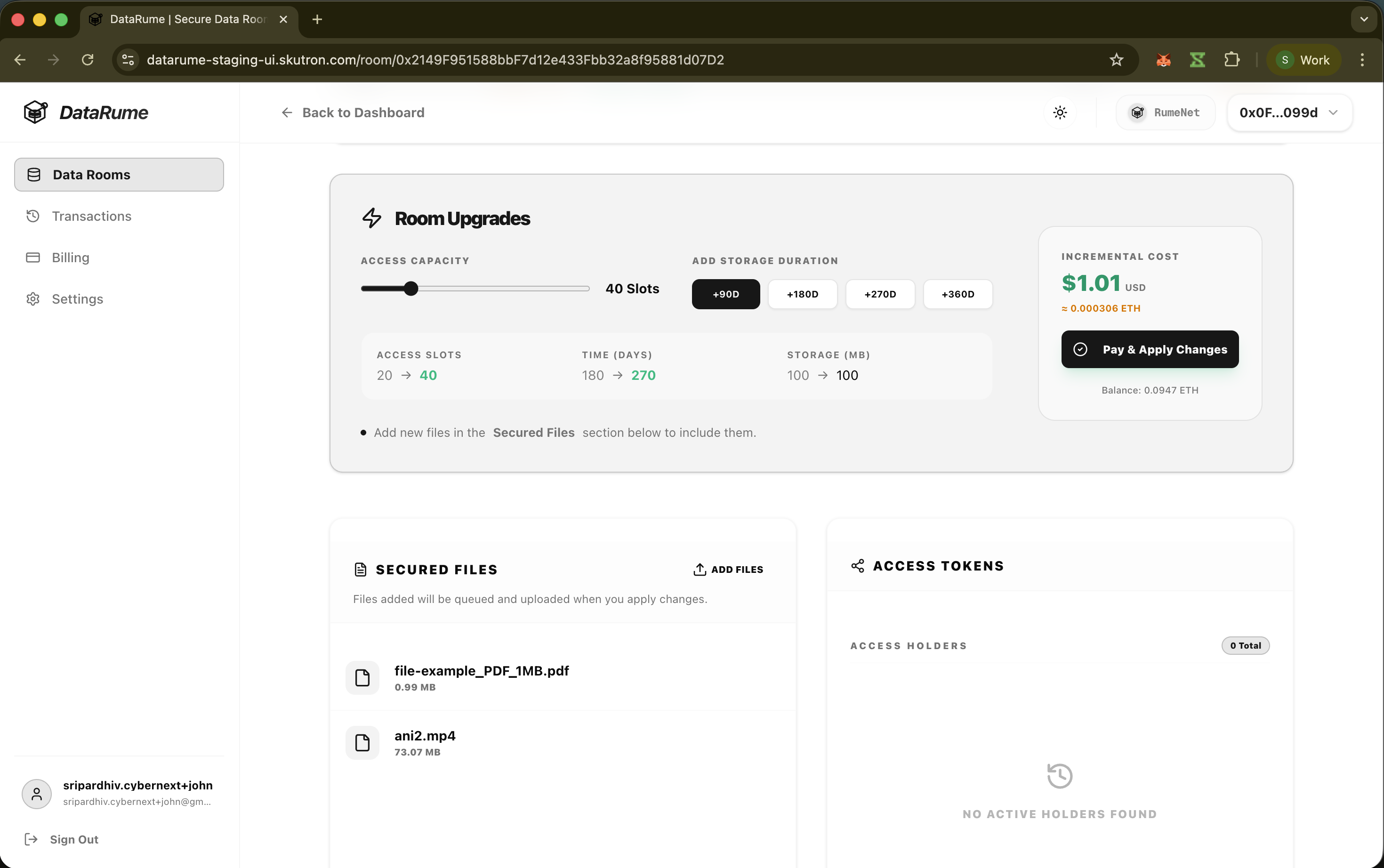
Room Upgrade Add File
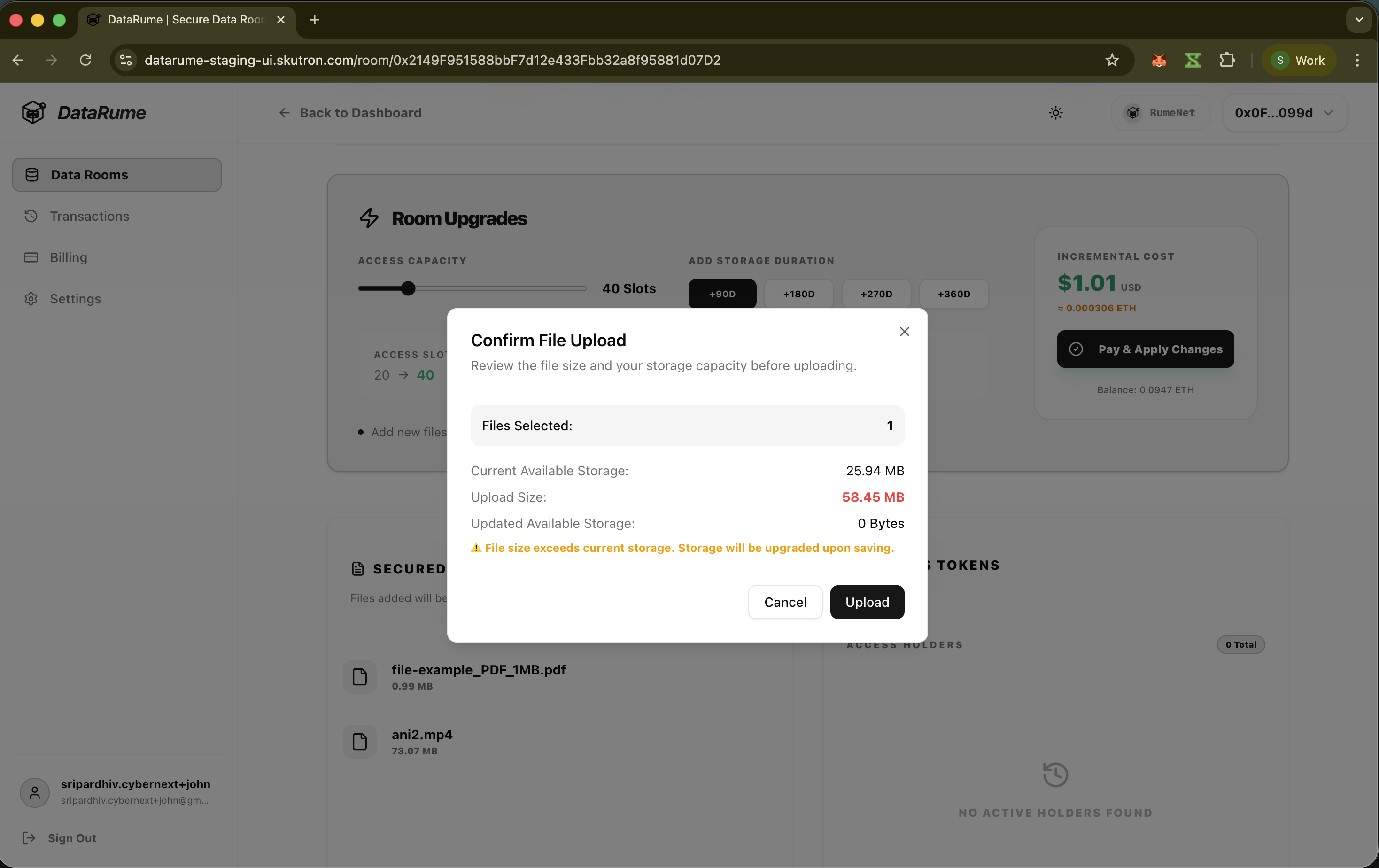
Room Upgrade Add File Modal
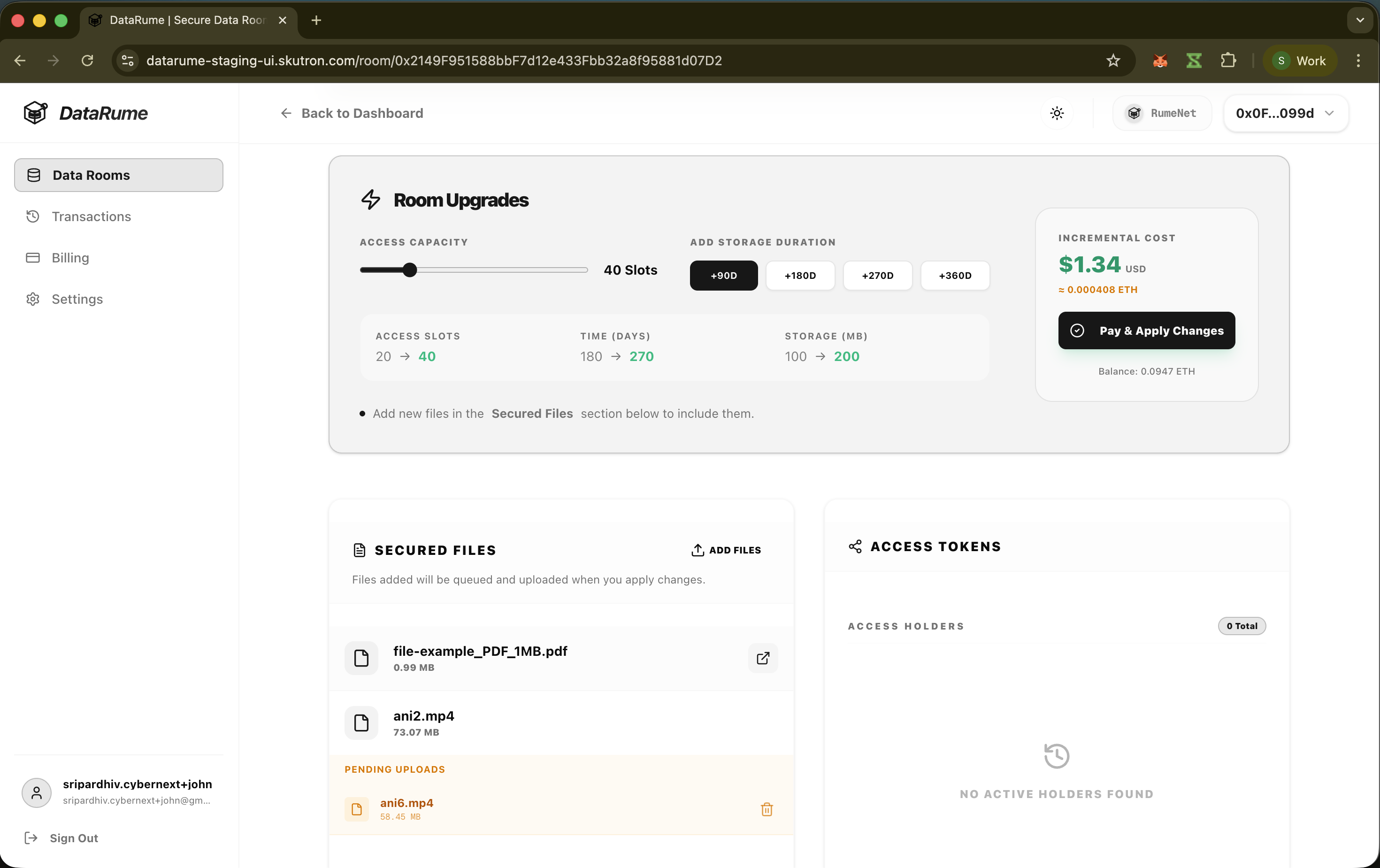
Files Queued to Upload